Chapter 24: How to handle TouchEvents

In this chapter we will introduce the handling of user input for the first time.
In order to do this, we will add a few new member variables and one new method to our GameSurface:
private float lastTouchX;
private float lastTouchY;
private long touchDownTime = 0;
private static final int INVALID_POINTER_ID = -1;
private int activePointerId = INVALID_POINTER_ID;
and:
  @Override
  public boolean onTouchEvent(MotionEvent motionEvent) {
   final int action = motionEvent.getAction();

   switch (action & MotionEvent.ACTION_MASK) {

   case MotionEvent.ACTION_DOWN: {
    final float x = motionEvent.getX();
    final float y = motionEvent.getY();

    lastTouchX = x;
    lastTouchY = y;
    touchDownTime = System.currentTimeMillis();
    activePointerId = motionEvent.getPointerId(0);
    break;
   }

   case MotionEvent.ACTION_MOVE: {
    final int pointerIndex = motionEvent
      .findPointerIndex(activePointerId);
    final float x = motionEvent.getX(pointerIndex);
    final float y = motionEvent.getY(pointerIndex);
    final float dX = x - lastTouchX;
    final float dY = y - lastTouchY;

    lastTouchX = x;
    lastTouchY = y;

    if (dY < -20) {
     Log.d("JustRoids", "MotionEvent: Swipe up (Thrust)");
     break;
    }
    if (dX > 20) {
     Log.d("JustRoids", "MotionEvent: Swipe right");
     break;
    }
    if (dX < -20) {
     Log.d("JustRoids", "MotionEvent: Swipe left");
     break;
    }
    break;
   }

   case MotionEvent.ACTION_UP: {
    if (System.currentTimeMillis() < touchDownTime + 150) {
     Log.d("JustRoids", "MotionEvent: Tap (Fire)");
    }
    activePointerId = INVALID_POINTER_ID;
    break;
   }

   case MotionEvent.ACTION_CANCEL: {
    activePointerId = INVALID_POINTER_ID;
    break;
   }

   case MotionEvent.ACTION_POINTER_UP: {
    final int pointerIndex = (action & MotionEvent.ACTION_POINTER_ID_MASK) >> MotionEvent.ACTION_POINTER_ID_SHIFT;
    final int pointerId = motionEvent.getPointerId(pointerIndex);
    if (pointerId == activePointerId) {
     final int newPointerIndex = pointerIndex == 0 ? 1 : 0;
     lastTouchX = motionEvent.getX(newPointerIndex);
     lastTouchY = motionEvent.getY(newPointerIndex);
     activePointerId = motionEvent.getPointerId(newPointerIndex);
    }
    break;
   }
   }

   return true;

  }
These changes will not do anything with our ship, yet. They will only detect and print out the different actions we like to capture; swipe left/right/up and tap.
In order to see the debug printout, you will have to select the LogCat tab in the lower section of Eclipse:
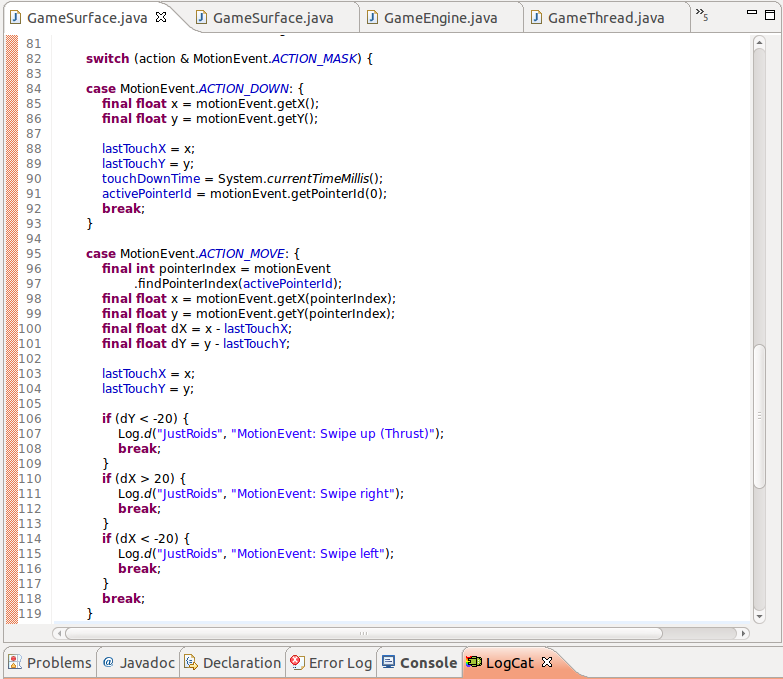
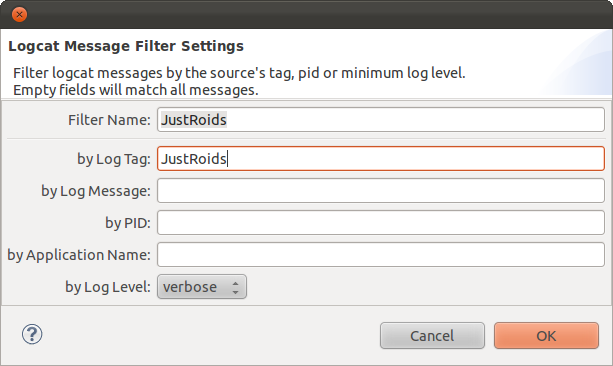
Then you can add a filter (the green "plus" symbol in the LogCat window), in order to hide all but the messages we print out from our own app:
Now we have everything in place to run our app again and try a few sweeps and taps on the screen, and see the printouts:
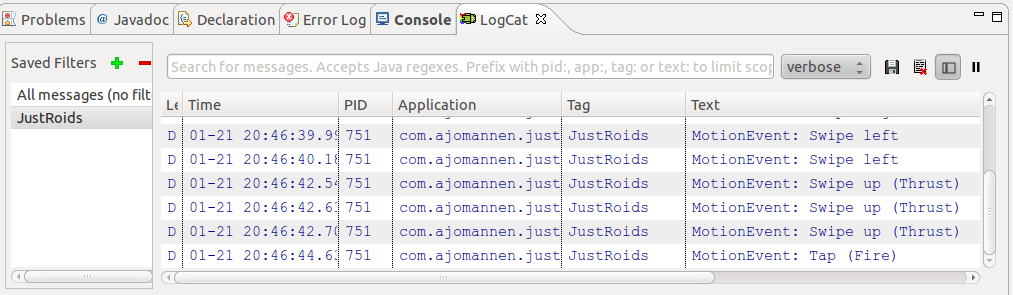
It works! We now have the framework for event handling in place.
In the next chapter, we'll go through how we can use these events to make our ship move.